A new share page — everything your customer needs, on one page
5 October 2026 · The Pammo team
อ่านภาษาไทยThe share link you send your customers (pammo.co/l/...) now opens a completely new page, laid out like a well-made listing sheet that reads easily on a phone or a computer. There is nothing to set up, and every link you have already sent opens the new page.
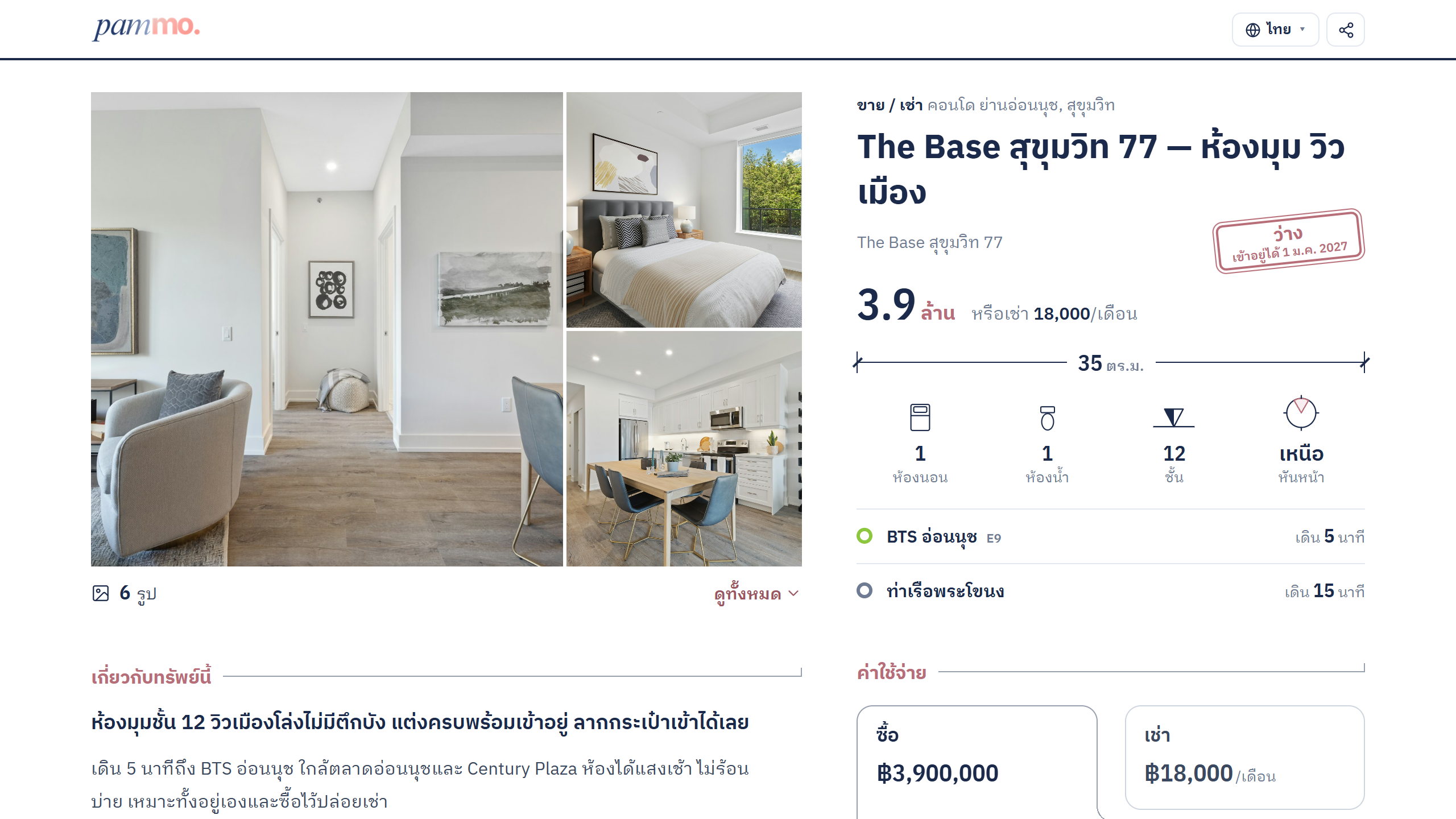
The rule is simple: a part appears when it has data. An empty field never shows as a blank to your customer. So each section below says which fields you fill in and what Pammo works out for you. Every field can be edited on the listing's detail page, or you can paste a post into the chat and let the AI fill them in.
1. Photos and the key facts first
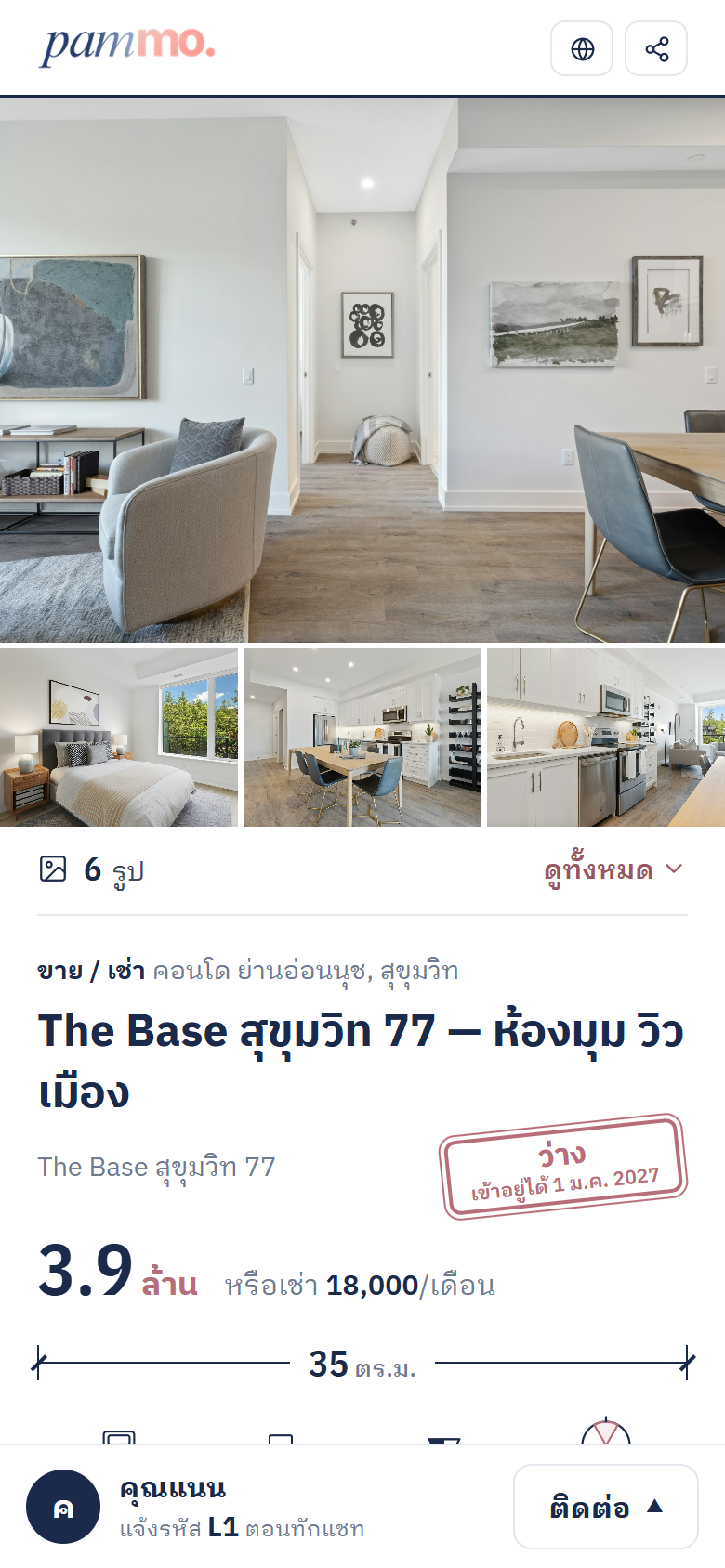
The photos open as one large picture with smaller ones beside it; ดูทั้งหมด (See all) shows every photo on the page. Below them come the price, the floor area, the key facts, a status stamp and the nearest stations with their walk.
You fill in
- Selling price and/or rental price (both share one line)
- Square metres, or the plot in rai, ngan and square wah
- Bedrooms and bathrooms
- Floor and facing for a condo, or storeys for a house or townhouse
- Move-in date, which goes on the status stamp
Pammo does
- Picks up to four key facts for the property type; an empty one gives its place to the next
- The status stamp (available, reserved, sold or rented) from your listing's status
2. Costs your customer can adjust
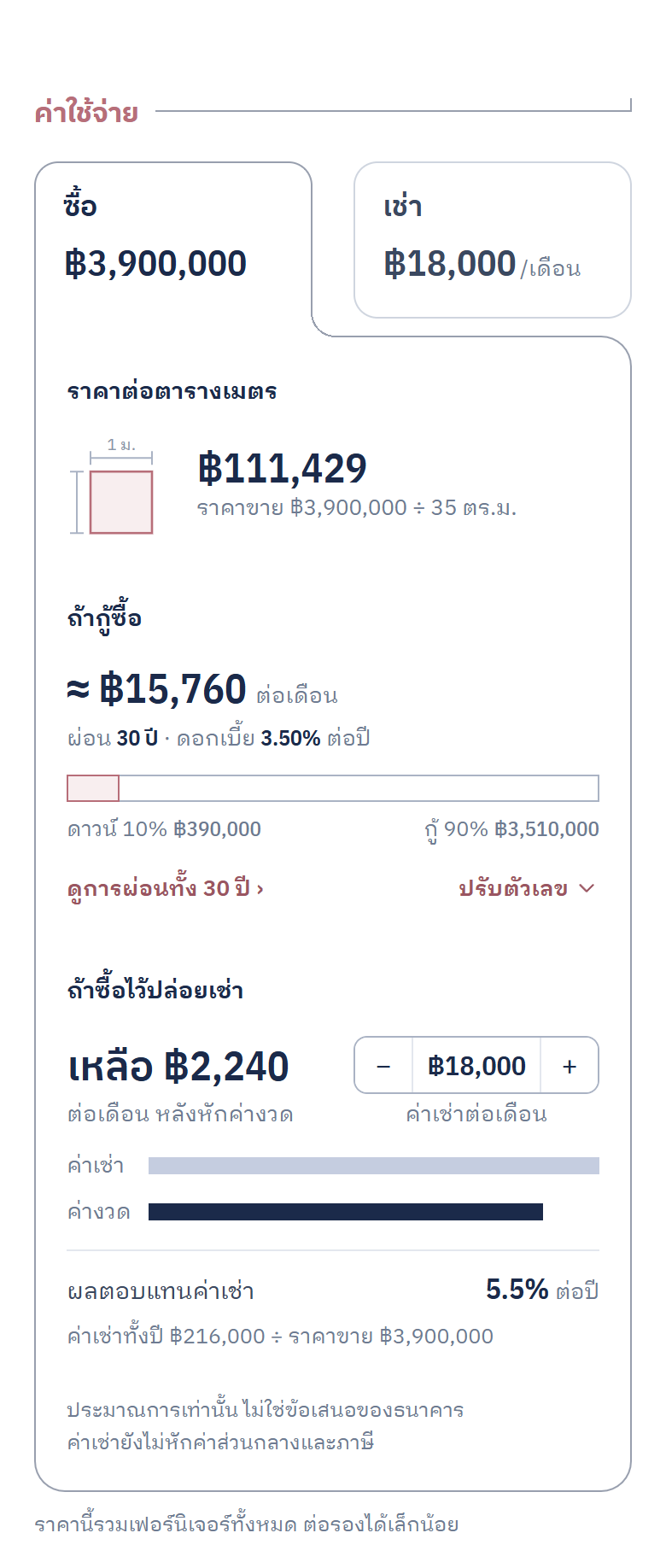
The buying side gives the price per square metre, an estimated monthly loan payment and, for buying to let, what the rent leaves or misses each month. The customer can change the down payment, term, rate and rent on the page. The renting side gives the money due on move-in day and what is paid over the contract.
You fill in
- Selling price, for the whole buying side
- Rental price, common fee, deposit (months), advance rent (months) and minimum contract, for the renting side
Pammo works out
- Price per square metre = selling price ÷ square metres
- The monthly loan estimate and the full 30-year schedule, from the selling price, starting at 10% down, 30 years and 3.5% a year. Change those starting numbers in Share settings, or for one listing (never shown for bare land)
- With both prices: what the rent leaves or misses after the loan payment, and the yearly rental yield = a year's rent ÷ selling price
- Money due at move-in = rental price × (deposit months + advance months)
- The costs over the contract, from the minimum contract
- A price-drop badge: when you lower a price, Pammo remembers the old one and shows the badge beside the price for 60 days
When you hide the price, everything worked out from it hides too.
3. Getting around
Stations come nearest first, then nearby places, the project and its amenities.
You fill in
- Nearby stations, with a distance (km) or a walk — either one is enough
- Nearby malls, markets, schools, hospitals and parks
- Amenities, year built and tower
Pammo does
- Each line's colour, and which stations change lines
- The walk from a distance, when you give only the distance (at 80 metres a minute, shown as "about")
- A Google map of the project, found from the project's name — no pin needed. With the address hidden it points at the project, never the unit. Turn the map on or off in Share settings
4. One tap to reach you
On a phone your name and photo stay in a bar at the bottom. The customer taps Contact and picks LINE or a call.
You fill in
- Display name, photo, phone and LINE in Share settings › the sharer's details (set once, used on every listing)
- Your listing code. The bar asks the customer to quote it when they message, so you know at once which listing they mean. Set up automatic codes in Settings › Listings › รูปแบบรหัสทรัพย์, or type one in the listing's Code field
Pammo does
- When a listing has no code yet, the bar shows Pammo's system number instead (such as L12), which every listing has
- Up to four of your other published listings at the end of the page
5. Two languages, easy to pass on
The globe at the top switches the page to English, and the share button opens the phone's own share menu, so a customer can forward the page to their family straight away.
You fill in
- The marketing description in the listing's share sheet, or let the AI write it from what the page shows
Pammo does
- The English version for foreign customers: your description, the project name and the nearby places
Choose what the page shows in Share settings › Display, or per listing from the share button on the listing. Open one of your share links and have a look — and if you have a question or an idea, message the team any time!